First step according to Ricardo Coelho –
All internal posts that relate to webdevelopment, staywithjay.com, user flow, etc.

Found some stuff form the quinta suite.. Lets get that one int here
Date: July 2, 2026
Team,
Today’s work produced several important improvements to the Reservation integration between Hostipable, Zapier, and WordPress.
The Reservation Archive page has been significantly improved.
Instead of showing minimal information, each reservation card now displays:
This makes the reservation archive much more useful as an operational dashboard.
Hostipable now sends the room category (examples: P2007S4, P2014R1, etc.).
Using this information we can determine:
This is a major improvement because the UI can now identify the property regardless of which room was booked.
Example:
Room Category
P2007S4

↓

Property
2007 West 100th Street

↓

Display correct address automatically
This opens the door to much richer reservation displays.
Reservation cards now contain enough information for staff to quickly identify:
without opening the reservation.
One major missing feature became obvious.
Currently reservations exist independently of users.
Instead, reservations should eventually become attached to the guest’s account.
Desired workflow:
Reservation Created
↓

Guest receives invitation

↓

Guest creates/logs into account

↓

Guest claims reservation

↓

Reservation permanently linked to user account
Benefits:
This is probably one of the highest-value improvements for the platform.
The Reservation Archive currently shows duplicate reservation cards after updates.
Example:
Reservation HMP9NNQPXE

Changed

Reservation HMP9NNQPXE

Changed, Edgewater Residence VII
and
Changed

Changed, P2014 Edgewater Residence XIV
This indicates that updates are being inserted as new records rather than updating the existing reservation.
The synchronization process should instead:
Find reservation by Reservation ID

↓

Update existing reservation

↓

Do NOT create a duplicate post
Once the property mapping is stable, we can expose additional information automatically:
without requiring additional reservation-specific data.
Today’s work substantially advances the architecture toward a true PMS-backed reservation system in WordPress.
The reservation archive is now evolving from a simple list into an operational dashboard, while the new property mapping creates the foundation for guest portals, property intelligence, and future automation.
The next major milestone should be implementing Reservation Claiming, which will connect reservations to registered users and unlock personalized guest experiences.
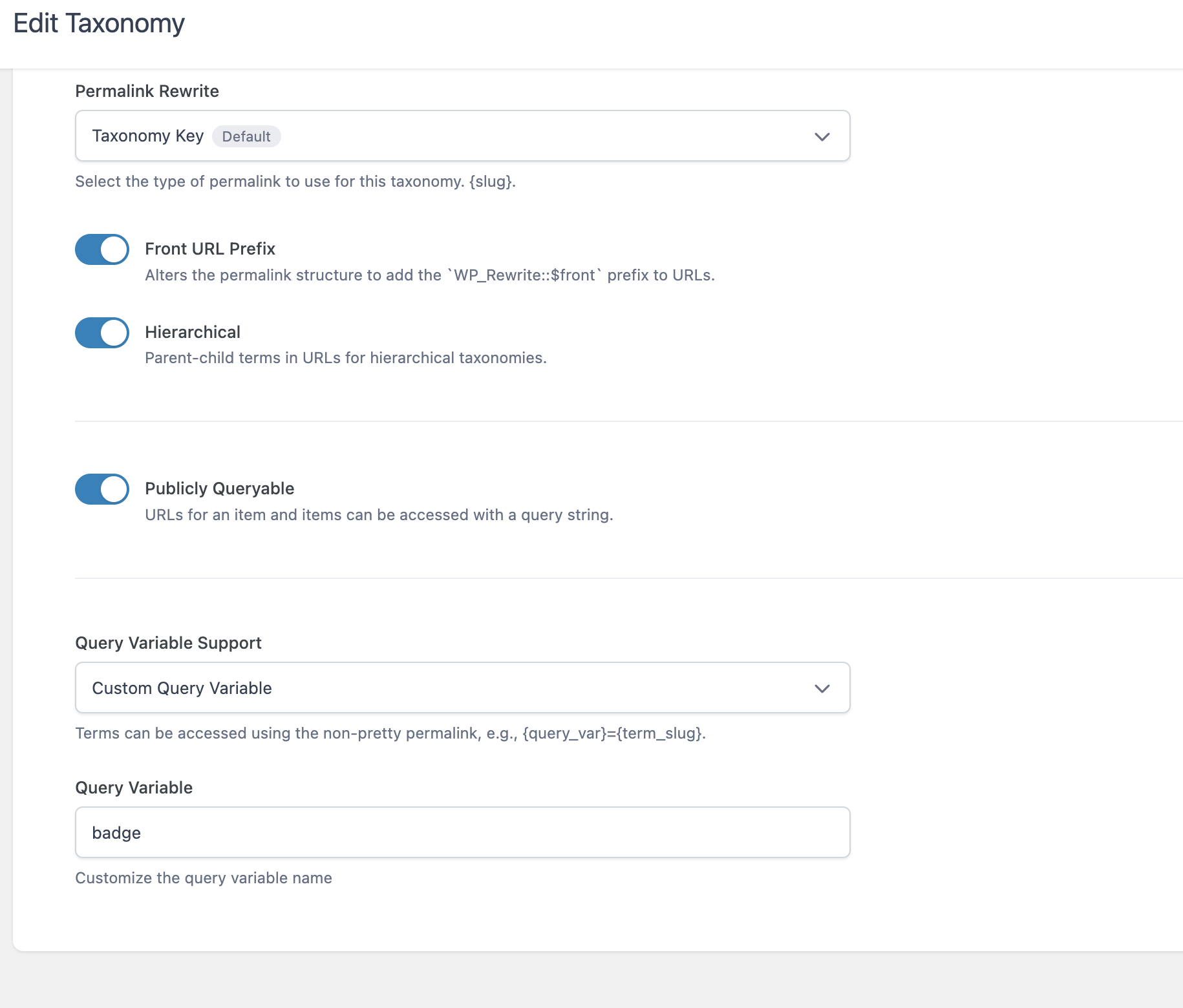
When I first looked at the Taxonomy settings screen in WordPress, I saw terms like Permalink Rewrite, Hierarchical, and Query Variable. If you’re new to WordPress development, those settings can feel intimidating.
The good news is that they’re actually much simpler than they appear.
Let’s use a real example.
I’m creating a taxonomy that uses the query variable:
badge
That means I’m organizing content by badges.
Imagine I have badges like:
Each badge becomes a taxonomy term.
Think of a taxonomy as simply another way to organize content.
Posts have Categories.
Posts have Tags.
You can create your own grouping called Badges.
A taxonomy is nothing more than a way to organize things.
Think about your computer.
You might have folders like
Documents
Pictures
Taxes
Invoices
Those folders help organize files.
A taxonomy does the same thing inside WordPress.
Instead of organizing files…
…it organizes Posts, Products, Listings, or any Custom Post Type.
Inside every taxonomy are terms.
For example
Taxonomy
Badges
Terms
Gold
Silver
Verified
Premium
The taxonomy is the container.
The terms are the individual labels.
This setting determines what the URL looks like.
Suppose my taxonomy is called
badge
and I have a term named
gold
The URL might become
https://example.com/badge/gold/
Notice how badge appears in the URL.
That’s the taxonomy key.
If I changed the taxonomy key to
achievement
the URL would become
https://example.com/achievement/gold/
Nothing about the content changed.
Only the URL structure changed.
This setting depends on your site’s permalink structure.
Most websites never need to worry about it.
Suppose all of your posts already live under
https://example.com/blog/
If Front URL Prefix is enabled, your taxonomy URLs might become
https://example.com/blog/badge/gold/
instead of
https://example.com/badge/gold/
If your site doesn’t use a front prefix, turning this on or off often makes no visible difference.
This allows parent and child terms.
Imagine this structure.
Awards
    Gold
    Silver
Instead of
badge/gold
the URL could become
badge/awards/gold
This is very similar to folders on your computer.
Photos
    Vacation
        Florida
The hierarchy simply preserves the path.
This determines whether people can actually visit the taxonomy.
If this is enabled…
Someone can visit
example.com/badge/gold
and WordPress will display all content tagged with the Gold badge.
If disabled…
The taxonomy still exists internally, but visitors cannot browse it directly.
This is useful when a taxonomy is only meant for administrative purposes.
This is one of the easiest settings to understand once you see an example.
Mine is set to
badge
That means WordPress also understands URLs like
example.com/?badge=gold
This is called a query string.
Instead of using the pretty URL
example.com/badge/gold
WordPress reads
?badge=gold
Both are simply two different ways of asking WordPress for the same information.
Pretty URL
example.com/badge/gold
Query String
example.com/?badge=gold
They both tell WordPress exactly the same thing.
“Show me everything with the Gold badge.”
One looks cleaner.
The other is easier for computers and developers to generate.
Using my settings, WordPress understands requests like these.
Pretty permalink
/badge/gold/
Query variable
?badge=gold
Because Hierarchical is enabled, it can also understand URLs like
/badge/awards/gold/
And because Publicly Queryable is turned on, visitors can actually browse those pages.
Many WordPress settings look technical simply because of the terminology. In reality, these options answer a few straightforward questions:
Once you understand those four ideas, you’ve grasped most of what this settings page is doing. The rest is simply WordPress giving you flexibility in how your content is organized and how users—and WordPress itself—can access it.