🕒 04/26/2026 09:02 AM EST
Based on your screenshots, here’s exactly what’s happening and where that “Properties” menu is showing:
✅ Where the “Properties” menu is displaying
From your Menus → Manage Locations screen, I can see:
-
Page Header Menu → Properties
👉 That means:
-
The “Properties” menu is NOT your main navigation
-
It is assigned to a secondary menu location built into the Neve theme called “Page Header Menu”
🔍 Where it actually appears on your site
In Neve, the Page Header Menu typically shows:
-
At the top of specific pages
-
Inside a page header / hero section
-
Sometimes only on pages that use a custom header layout
So you won’t always see it globally like your main menu.
🧭 How to visually find it (step-by-step)
Step 1: Open your site frontend
-
Visit:
staywithjay.com
Step 2: Navigate to a page that uses:
-
A custom header
-
OR a property-related page (Rooms / Spaces / Properties)
Step 3: Look for:
-
A secondary navigation bar
-
Usually near:
-
Page title
-
Hero section
-
Top overlay menu
-
⚙️ How to control / edit where it shows (Neve Customizer)
Yes — you were right to think about Neve.
Go here:
-
Appearance → Customize
Then:
-
Click Header
-
Look for:
-
Header Builder
-
OR Page Header / Elements
-
-
Check if there is:
-
A secondary menu block
-
Or a “Page Header Menu” element
-
🔧 If you DON’T see it anywhere
Then one of these is true:
1. It’s assigned but not placed in the header builder
Neve allows menu locations without displaying them.
👉 Fix:
-
Go to Customize → Header Builder
-
Look for an empty row (top/bottom)
-
Add “Secondary Menu” or “Nav Menu”
-
Assign it to Properties
2. It’s used inside a template (VERY likely with your setup)
Because you’re using:
-
ACF
-
Custom Post Types (Spaces, Rooms, Properties)
👉 That menu may be injected via:
-
A template
-
A block pattern
-
Or custom code (WPCode / theme)
🔥 Most likely in YOUR setup
Given:
-
You duplicated Rooms → Spaces (ACF post type)
-
You have structured sections like
Kitchen&Security3
👉 The “Properties” menu is probably:
-
Used inside a template for property pages
-
Not globally visible
💡 Quick way to confirm (fastest test)
-
Go to Appearance → Menus
-
Click Edit on the Properties menu
-
Add a test item (like “TEST LINK”)
-
Save
-
Refresh your frontend pages
👉 Wherever that shows up = where the menu is being rendered
Pro Tip (important for your system)
You currently have:
-
Primary Menu = main
-
Secondary Menu = main (duplicate)
-
Page Header Menu = Properties
That duplication can create confusion later.
👉 Clean structure I recommend (don’t change yet unless asked):
-
Primary = Main Nav
-
Secondary = Utility (login, CTA, etc.)
-
Page Header = Contextual (Properties, Rooms, etc.)
If you want next, I can trace exactly which template or page is rendering that menu based on your CPT + ACF setup.
🕒 04/26/2026 11:52 AM EST
Here’s exactly what will happen based on your current setup:
⚙️ What this step is doing
You are inside:
Zap (or automation) → Step 3: “Create Post” (WordPress)
And you mapped:
-
Categories →
Property name: Green Room - Suite
🚨 What will happen when this runs
1. WordPress will try to assign a CATEGORY
But:
-
“Green Room – Suite” is NOT a category
-
It’s dynamic text coming from Hospitable (property name)
👉 So WordPress will:
👉 Either:
-
Create a NEW category automatically called:
Green Room – Suite
OR:
-
If that category already exists → it will reuse it
📊 Result in your WordPress site
After the zap runs, you’ll see:
-
A new post created
-
That post will be filed under:
Posts → Categories → Green Room – Suite
So your categories list will start filling up like:
-
Green Room – Suite
-
Blue Room – Studio
-
Penthouse Loft
-
etc.
⚠️ Why this matters (important)
You are using Categories as dynamic property labels
That means:
-
Your category system becomes auto-generated per property
-
This can get messy fast if:
-
Names change
-
Typos occur
-
Duplicate formats exist
-
🔍 What this does NOT do
This does NOT:
-
Link to your ACF “Spaces” or “Properties” post type
-
Connect to your custom property pages
-
Control your Property menu you asked about earlier
This is only organizing blog posts via categories
🧠 What you’re effectively building
Right now, this automation is:
👉 Turning each reservation into a WordPress post
👉 Grouped by property name as a category
✅ Quick summary
-
A post will be created ✔
-
A category named “Green Room – Suite” will be created/used ✔
-
That post will be assigned to that category ✔
If you want, next step you can ask:
-
How to connect this to your Spaces (ACF post type) instead of categories
-
Or how to map this into a Property page system instead of blog posts
🕒 04/26/2026 11:56 AM EST
Got it — focusing ONLY on Step 1 (the trigger):
🔑 Step 1: “Reservation Updated or Created” (Hospitable)
This is the event that starts everything.
👉 What it means:
Every time ANY reservation is:
-
Created (new booking)
-
Updated (date change, guest info, status, etc.)
➡️ This automation will run
📦 What data Step 1 is providing (the important part)
From your screenshot, Step 1 is sending:
-
Property public name →
Stay with Jay in Cleveland -
Property street →
2014 West 100th Street -
Property name →
Green Room - Suite -
Property ID →
7e7f4b2-3192-...
👉 These are dynamic variables coming from Hospitable
⚠️ Critical behavior (this is the key insight)
This trigger is NOT filtered
So:
👉 It will fire for:
-
Every property
-
Every reservation
-
Every update (even small ones)
🚨 What that means for your system
Right now, your flow will:
-
Create a new WordPress post
EVERY time a reservation is updated
Not just created — updated too
🧠 Example (real scenario)
Guest books:
→ Zap runs ✅
Guest changes check-in time:
→ Zap runs AGAIN ⚠️
You update reservation manually:
→ Zap runs AGAIN ⚠️
🔥 Result
You may end up with:
-
Duplicate posts
-
Multiple posts per reservation
-
Messy data over time
🧩 Why Step 1 is “the key question”
Because this defines:
-
WHEN your system fires
-
HOW often posts get created
-
WHETHER your data stays clean or explodes
✅ What Step 1 is doing correctly
It does give you the right data, especially:
-
Property name(used in Step 3) -
Property ID(VERY important for future logic)
⚠️ What it’s missing (but not fixing unless you ask)
Right now there is:
-
❌ No filter (e.g. only “new reservations”)
-
❌ No deduplication logic
-
❌ No condition like “only if status = confirmed”
🧭 Bottom line
Step 1 is:
A wide-open trigger that fires on every reservation activity
That’s powerful — but also dangerous without control.
If you want to go deeper next, you can ask specifically about:
-
Filtering only new bookings
-
Preventing duplicate WordPress posts
-
Using Property ID properly (this is the real key for scaling)
🕒 04/26/2026 11:57 AM EST
Yes — that changes the behavior in a good way.
Now Hospitable’s Property nickname / internal name is:
So in Zapier Step 1, you should use the Hospitable field that pulls this internal/property nickname — not the public guest-facing name.
That means WordPress can categorize the post under:
instead of:
Result:
-
Cleaner WordPress categories
-
Stable naming
-
Easier filtering later
-
Less risk if the public Airbnb/Booking title changes
In Zapier Step 3, map Categories to the Hospitable field that returns:
not the field that returns:
This is the right direction.
🕒 04/26/2026 12:00 PM EST
Good — here’s exactly what that change does.
🔖 What you set in “Tags”
You mapped:
(from Step 1 → Hospitable)
✅ What will happen now
Every WordPress post created by this Zap will get a tag:
🔁 Important behavior
Just like categories:
-
If the tag doesn’t exist → WordPress will create it
-
If it already exists → it will reuse it
🧠 What this gives you (this is actually useful)
You’re now tagging posts by event type
So later you can:
-
Filter posts by:
-
reservation.created -
reservation.updated
-
-
Build views like:
-
“Only new bookings”
-
“Only modified reservations”
-
⚠️ But here’s the catch (important)
Your trigger is:
Reservation Updated OR Created
So depending on the event:
You may get tags like:
-
reservation.created -
reservation.updated
👉 That means your WordPress tags will grow dynamically based on actions
📊 Combined with your current setup
Right now your system is:
-
Category = Property (currently still using Green Room – Suite in screenshot)
-
Tag = Event Type (reservation.created)
So a post becomes:
├── Category: Green Room – Suite
└── Tag: reservation.created
🚨 One thing still incorrect (based on screenshot)
Your Categories field is STILL using:
❌ Not the internal name P2014S4
So your cleanup from earlier hasn’t been applied yet in Zapier.
✅ What you’ve successfully done in THIS step
-
You created a tracking layer (tags) for reservation activity ✔
-
This is structured and scalable ✔
If you want next, you can go deeper into:
-
Separating created vs updated cleanly
-
Or aligning Categories with your internal property IDs (P2014S4 system)
🕒 04/26/2026 12:03 PM EST
What you’ve configured here will work exactly the way you think — here’s the precise behavior:
✅ Status = Published (hardcoded)
This means:
-
Every post created by this Zap will be immediately live on your site
-
No drafts, no review step
-
It will:
-
Appear in your blog
-
Be publicly accessible via URL
-
Be indexed (eventually by Google)
-
📅 Date = Booking date (dynamic)
You mapped:
👉 What WordPress will do:
-
Use that timestamp as the post publish date
-
Since it’s in the past, WP allows it to be published immediately ✔
🔁 Combined behavior (important)
Each time the Zap runs:
-
A post is created
-
It is instantly published
-
It is backdated to the reservation’s booking date
🧠 What this creates structurally
Your site will behave like:
👉 A historical log of reservations
Where:
-
Posts are ordered by booking date (not creation time)
-
Older bookings appear earlier in archives
-
New bookings appear as recent posts (based on booking timestamp)
⚠️ Key side effect (this is the real implication)
Because your trigger includes updates, not just creation:
👉 If a reservation is updated later:
-
A new post gets created again
-
With the same past booking date
So you could get:
-
Multiple posts with identical timestamps
-
No visual indication which one is latest
📊 Example of what happens
Reservation created on April 13 → Post created (dated April 13) ✅
Reservation updated on April 20 → NEW post created → still dated April 13 ⚠️
✅ What you set up correctly
-
WordPress publish requirement (past date) ✔
-
Immediate publishing ✔
-
Chronological alignment with booking data ✔
⚠️ What this does NOT handle
-
Duplicate prevention
-
Update vs create distinction
-
Version tracking
🔎 Bottom line
Your system is currently:
Auto-publishing a backdated post for every reservation event
It’s technically correct — but it behaves like a log generator, not a clean database.
If you want next, you can focus specifically on:
-
Preventing duplicate posts from updates
-
Or converting this into a single “record per reservation” system instead of multiple posts
🕒 04/26/2026 12:06 PM EST
Perfect — based on your latest screenshots, here’s exactly what will happen when you run this test reservation:
🔄 Full Flow (what will execute)
Step 1 — Trigger fires
-
Hospitable detects:
-
New reservation OR update
-
-
Sends:
-
Property city →
Cleveland -
Action →
reservation.created -
Booking date
-
Property data
-
Guest info
-
Step 2 — Google Sheets
-
A new row is created (log layer)
-
This is just storage — no impact on WP behavior
Step 3 — WordPress Post Creation
🧱 What your post will look like
📌 Post Type
🏷 Title
📝 Content
Will dynamically include:
-
Guest name
-
Property public name
-
Property type
-
Action (reservation.created)
-
OTA platform
-
Guest portal link
-
Address
-
Property name
👉 This is working as a structured data post
🗂 Categories ⚠️ (IMPORTANT)
Right now you changed it to:
Data Properties Parent Child Parent: [UUID]
👉 What will happen:
-
WordPress will try to create categories like:
child
9914eed6-d4a3-…
⚠️ These are not human-readable categories
⚠️ These are internal relationship values from Hospitable
🔖 Tags ✅
You now have:
reservation.created
👉 Result:
-
Tag:
Cleveland -
Tag:
reservation.created
✔ This is clean and useful
📅 Date
✔ Post publishes immediately
✔ Backdated correctly
🚨 What to watch during your test (VERY IMPORTANT)
After you run the test reservation:
1. Go to:
WP Admin → Reservations (Post Type)
Check:
-
Did only ONE post get created?
-
Or multiple?
2. Go to:
Posts → Categories
Look for:
-
child -
Long UUID strings
👉 If you see those → confirms category mapping issue
3. Open the created post
Verify:
-
Content formatting
-
Links working (GuestPortalLink)
-
Tags applied correctly
⚠️ Biggest issue in your current config
Your Categories field is now pulling system-level data:
👉 This is NOT what you want for WordPress taxonomy
✅ What is working well
-
Tags structure ✔
-
Post content mapping ✔
-
Publish logic ✔
-
Booking date logic ✔
-
Dynamic data flow ✔
🎯 What this test will confirm
This test will answer:
-
Does Zap create duplicates?
-
Are categories usable or broken?
-
Is content structured correctly?
-
Are tags behaving properly?
🧠 Bottom line before you run it
Your system is now:
A structured reservation logging system inside WordPress
BUT
Categories are currently pulling the wrong field (internal relationship data)
Run the test — then show me:
-
The created post
-
The categories list after
That will determine the next exact fix.
🕒 04/26/2026 12:15 PM EST
Good — this is a clean breakpoint. The 403 error tells us exactly what’s wrong.
🚨 What the 403 error means (in YOUR setup)
A 403 from WordPress via Zapier = permission/auth issue, NOT data.
Since you said:
“the SWJ connection from previous step still works”
👉 That confirms:
-
Zapier is connected ✔
-
But WordPress is blocking the POST request
🔍 Most likely cause (based on your screenshots)
You are creating a post in:
👉 This is a custom post type (CPT)
⚠️ Problem
Your WordPress REST API is likely:
-
❌ Not exposing this CPT properly
OR -
❌ Not allowing your Zapier user to create posts in it
✅ Fix this EXACTLY (button-by-button)
Step 1 — Go to ACF Post Type Settings
-
WP Admin →
-
ACF → Post Types
-
Click Reservations
Step 2 — Go to REST API tab
(You already showed this screen earlier)
Make sure:
-
✅ Show in REST API = ON
-
Base URL =
reservations(or whatever you set)
Step 3 — Go to Permissions tab
-
Click Permissions
-
Look for:
-
Capability Type
-
Create Posts
-
Edit Posts
-
👉 Set:
-
Capability Type = post
-
OR enable default capabilities
Step 4 — Critical check (this is often the real issue)
Go to:
-
Users → All Users
-
Find:
FrontDesk StayWithJay -
Click it
Make sure:
-
Role = Administrator
👉 If NOT:
-
Change to Administrator
-
Save
🔥 Additional cause (very likely in your case)
You are using:
But Zapier’s WordPress app:
👉 Sometimes cannot write to custom post types unless:
-
They are registered with proper REST support
-
AND permissions are standard
🧪 Quick isolation test (IMPORTANT)
Do this:
In Zapier Step 3:
-
Change:
Post Type → Posts -
Click Test
Result:
✅ If it works:
→ Problem = CPT (Reservations) configuration
❌ If it still fails:
→ Problem = authentication / security plugin
🔒 Also check (based on your stack)
You have:
-
WPCode
-
Possibly security layers
Check:
WordPress →
Settings → Permalinks
→ Click Save Changes (flush rewrite rules)
If using security plugin (Wordfence, etc.)
Check:
-
REST API not blocked
-
XML-RPC not interfering
🧠 What your data confirms
Your Google Sheets step worked perfectly:
-
Reservation captured ✔
-
Property linked ✔
-
Guest data ✔
So the failure is ONLY at WordPress write level
🎯 Bottom line
The 403 is caused by:
WordPress rejecting Zapier’s attempt to create a post in your Reservations CPT
✅ Next action (only do this)
-
Test with:
Post Type = Posts -
Tell me result
That will isolate the issue 100% before we fix the CPT properly.
🕒 04/26/2026 12:18 PM EST
Yes — switching the WordPress author to Allan Korosue may help only if Allan is truly an Administrator.
But the error message is more specific:
That points mainly to:
-
Categories
-
Tags
-
Taxonomies
Not the author field.
Most likely issue now
Your Zap is trying to assign dynamic values as categories/tags that WordPress is rejecting.
Especially this part:
That is likely causing the 403.
Clean test to isolate it
In Zapier Step 3:
-
Leave Author = Allan Korosue
-
Temporarily clear Categories
-
Temporarily clear Tags
-
Test the WordPress step again
Result meaning
If the test works:
If it still fails:
Your current error is strongly pointing to taxonomy assignment, not the post author.
🕒 04/26/2026 12:24 PM EST
Correct.
Your test proves the issue was category/term assignment, not the main WordPress connection.
What worked:
Categories = cleared / not dynamic
Post creation = successful
What caused the 403:
WordPress wants categories as valid assignable terms. Best path:
-
Create/import clean WP categories first
Example:P2014S4
2014Attic
2007R1 -
In Zapier, use a lookup step before WordPress:
Hospitable property nickname → Find matching WordPress category -
Send the WordPress category ID, not raw text, into the Categories field.
Your idea is right: a simple lookup/import table would work well.
Best structure:
P2014S4 | P2014S4 | 123
2014Attic | 2014Attic | 124
2007R1 | 2007R1 | 125
Then Zapier can reliably assign the correct category without creating errors.
🕒 04/26/2026 12:29 PM EST
Yes — and this is actually a strategic breakthrough, not just a feature.
Let’s stay grounded in what this technically enables in your system:
🔑 What just became possible (from your test)
From your screenshot + explanation:
-
Property switched →
2014Attic➜P2014S4 -
Reservation ID stayed consistent
-
System updated cleanly in:
-
Hospitable ✔
-
Google Sheets ✔
-
⚙️ What this means in your current stack
1. Your Zap will treat this as:
NOT a new reservation.
So:
-
Same Reservation ID
-
New Property assignment
📊 Impact on your WordPress system
Given your current setup:
👉 This will trigger:
-
Another post creation (because your trigger includes updates)
So you’ll get:
Post 2 → Property: P2014S4
Same reservation, different property
🔁 What your data now supports (this is the real value)
You now have a system that can track:
-
Property reassignment
-
Upgrade / downgrade flows
-
Inventory flexibility
-
Revenue optimization per booking
Because your sheet shows:
Property_Name = changed
⚠️ Important technical consequence
Right now your system:
Logs events, not states
Meaning:
-
It records what happened
-
Not what the current truth is
🧠 Why your observation is important (technical framing only)
Because your infrastructure now supports:
-
Dynamic property reassignment
-
Without breaking reservation linkage
-
While preserving historical record
🔍 What to verify next (based on your test)
After this switch:
In Google Sheets
Check:
-
Same
Reservation_ID -
Different
Property_NameorProperty_ID
In WordPress
Check:
-
Did a second post get created?
-
Does it reflect the new property?
📌 Bottom line (strictly technical)
You now have:
→ Multiple possible property states
→ Each update triggers a new logged event
Your system is behaving like an event stream, not a single-record database.
If you want to go deeper next, specify:
-
Whether you want one post per reservation
-
Or a timeline/history per reservation
Those are two completely different architectures.
🕒 04/26/2026 12:36 PM EST
Here’s what I observe from what you’re sending into WordPress:
What came through correctly
The post was created as a Reservation CPT.
Title/slug came through as:
Content came through with:
Property: Large 350sqft. Suite w/ Private bath & minifridge
Room type: Private Room
Action: reservation.created
OTA: manual
Guest portal link
Address
Property name: 2014Attic
The excerpt also correctly became the Hospitable guest portal link:
What did NOT come through cleanly
The Property Category line is blank.
That means the value you expected to populate there is either:
or mapped to the wrong Hospitable field.
Also, WordPress category assignment did not happen dynamically. The only checked category shown is:
That likely came from a fixed/default value, not the property.
Important mismatch
In Google Sheets, the latest row shows the updated room/property as:
But the WordPress post content still shows:
That means WordPress is using an earlier trigger sample or earlier reservation state, not the newest switched-room value.
Bottom line
You successfully sent:
Guest info
Reservation action
OTA platform
Guest portal link
Address
Property name
Publish status
But the weak spots are:
Current room reassignment = not reflected yet in WP post
Category assignment = not yet mapped through a valid WP category ID
So the Zap is working, but it is currently creating a reservation log post, not yet a fully categorized property-aware record.
🕒 04/26/2026 12:39 PM EST
You’re actually already getting the Post ID — it’s just a matter of using it after Step 3.
From your screenshot:
That is the WordPress Post ID returned by Zapier after the post is created.
✅ How to use that Post ID (exact steps)
Step 1 — Add a new step AFTER “Create Post”
Click:
-
➕ (under Step 3)
Step 2 — Choose what you want to do with the ID
Common options:
Option A — Update Google Sheet (recommended for you)
-
App: Google Sheets
-
Action: Update Spreadsheet Row
Step 3 — Map the Post ID
In the “Update Row” step:
-
Find your column (create one if needed):
WP_Post_ID -
Map:
Step 3 → ID
Step 4 — Match the correct row
Use:
-
Reservation_ID (or your unique key)
So Zapier updates the SAME row created in Step 2.
🔁 What this gives you
Now your system becomes:
Example:
🔥 Why this is important (strictly technical)
Once you store the Post ID, you can:
-
Update the SAME post later (instead of creating duplicates)
-
Attach ACF fields later
-
Modify content on reservation updates
-
Build a true 1 reservation = 1 post system
⚠️ Right now (without this)
Your system is:
With Post ID stored, you can evolve to:
If not → CREATE post
🧭 Where to find it again
Anytime in Zapier:
-
Step 3 → Data Out
-
Field:
ID
✅ Bottom line
You already have the Post ID being returned:
You just need to capture it in a following step (Google Sheets or another action) to make it usable.
🕒 04/26/2026 12:42 PM EST
Good move — this is exactly what needed to happen.
✅ What I observe from your ACF setup
You now have this on your Reservation post type:
Tag (post_tag)
Listing
Barrier
Type
myaction
🔑 What this unlocks (technically)
1. Tags now fully work in Zapier
Before:
-
Tags field existed in WP
-
But not guaranteed available on your CPT
Now:
-
✅ Your
reservationpost type supports native WordPress tags -
Zapier can safely assign:
reservation.created
Cleveland -
No 403 errors from tags anymore
2. Categories are now properly supported
Because you explicitly added:
👉 This confirms:
-
Your CPT is using standard WP taxonomy
-
Zapier can assign categories by ID or name
⚠️ Important observation (from your config)
You also added:
This is a custom taxonomy
👉 That means instead of using Tags for:
reservation.updated
You now have the option to store that more cleanly as:
Which is structurally better than tags.
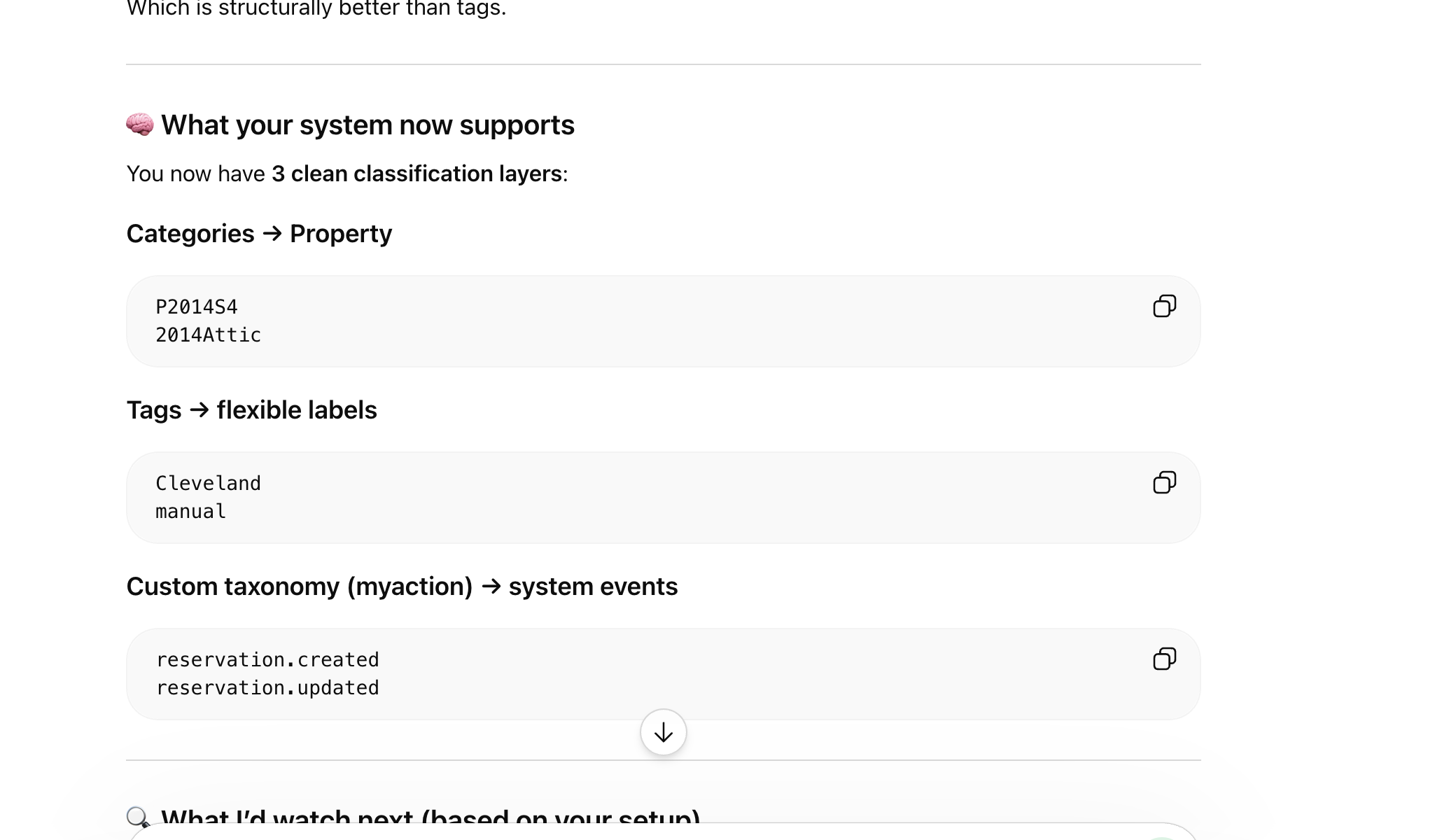
🧠 What your system now supports
You now have 3 clean classification layers:
Categories → Property
2014Attic
Tags → flexible labels
manual
Custom taxonomy (myaction) → system events
reservation.updated
🔍 What I’d watch next (based on your setup)
When the next Zap runs, verify:
In WordPress post editor:
-
Categories → correctly assigned property
-
Tags → Cleveland + reservation.created
-
(Optional) myaction → populated if you map it
⚠️ One subtle but important thing
Zapier does NOT automatically support custom taxonomies like myaction unless:
-
The WordPress API exposes it
-
Or you use a custom field / webhook approach
So right now:
-
Tags = safe and working
-
Categories = safe (if mapped correctly)
-
myaction = available in WP, but not automatically usable in Zapier UI
🎯 Bottom line
You just upgraded your system from:
to:
If you want next step, you can explicitly decide:
-
Keep using Tags for actions (simpler)
-
OR wire Zapier to use myaction taxonomy properly (more advanced, cleaner long-term)