2627 Greg Electrical quote
About 1500 in materials
2627 Greg Electrical quote
About 1500 in materials
When we are able to in our own in-house platform, actively reserve a room for a price that we decide in that active reservation integrates in blocks all of the other channels that sell that specific room, that’s when
That is the game changer.
How far are we from that point?
Super close. We are three months out from being able to effectively use in the ploy or test in deploy this system in the scenario of what you will see are our regular guest being able to book a room a stay at a discounted rate than the rate that is being fed to all of the algorithms, so we’ll stay competitive with the outside world and capitalize on the market rate while providing a regular guest, the ability to stay loyal.
Why is that important?
During low seasons, who pays the bills are your returning guest. At SWJ one of our address or a rate of returning Guest beating the market by a healthy margin over 15% above market.
🕒 04/26/2026 09:02 AM EST
Based on your screenshots, here’s exactly what’s happening and where that “Properties” menu is showing:
From your Menus → Manage Locations screen, I can see:
Page Header Menu → Properties
👉 That means:
The “Properties” menu is NOT your main navigation
It is assigned to a secondary menu location built into the Neve theme called “Page Header Menu”
In Neve, the Page Header Menu typically shows:
At the top of specific pages
Inside a page header / hero section
Sometimes only on pages that use a custom header layout
So you won’t always see it globally like your main menu.
Visit: staywithjay.com
A custom header
OR a property-related page (Rooms / Spaces / Properties)
A secondary navigation bar
Usually near:
Page title
Hero section
Top overlay menu
Yes — you were right to think about Neve.
Appearance → Customize
Click Header
Look for:
Header Builder
OR Page Header / Elements
Check if there is:
A secondary menu block
Or a “Page Header Menu” element
Then one of these is true:
Neve allows menu locations without displaying them.
👉 Fix:
Go to Customize → Header Builder
Look for an empty row (top/bottom)
Add “Secondary Menu” or “Nav Menu”
Assign it to Properties
Because you’re using:
ACF
Custom Post Types (Spaces, Rooms, Properties)
👉 That menu may be injected via:
A template
A block pattern
Or custom code (WPCode / theme)
Given:
You duplicated Rooms → Spaces (ACF post type)
You have structured sections like Kitchen&Security3
👉 The “Properties” menu is probably:
Used inside a template for property pages
Not globally visible
Go to Appearance → Menus
Click Edit on the Properties menu
Add a test item (like “TEST LINK”)
Save
Refresh your frontend pages
👉 Wherever that shows up = where the menu is being rendered
You currently have:
Primary Menu = main
Secondary Menu = main (duplicate)
Page Header Menu = Properties
That duplication can create confusion later.
👉 Clean structure I recommend (don’t change yet unless asked):
Primary = Main Nav
Secondary = Utility (login, CTA, etc.)
Page Header = Contextual (Properties, Rooms, etc.)
If you want next, I can trace exactly which template or page is rendering that menu based on your CPT + ACF setup.
🕒 04/26/2026 11:52 AM EST
Here’s exactly what will happen based on your current setup:
You are inside:
Zap (or automation) → Step 3: “Create Post” (WordPress)
And you mapped:
Categories → Property name: Green Room - Suite
But:
“Green Room – Suite” is NOT a category
It’s dynamic text coming from Hospitable (property name)
👉 So WordPress will:
Create a NEW category automatically called:
If that category already exists → it will reuse it
After the zap runs, you’ll see:
A new post created
That post will be filed under:
So your categories list will start filling up like:
Green Room – Suite
Blue Room – Studio
Penthouse Loft
etc.
You are using Categories as dynamic property labels
That means:
Your category system becomes auto-generated per property
This can get messy fast if:
Names change
Typos occur
Duplicate formats exist
This does NOT:
Link to your ACF “Spaces” or “Properties” post type
Connect to your custom property pages
Control your Property menu you asked about earlier
This is only organizing blog posts via categories
Right now, this automation is:
👉 Turning each reservation into a WordPress post
👉 Grouped by property name as a category
A post will be created ✔
A category named “Green Room – Suite” will be created/used ✔
That post will be assigned to that category ✔
If you want, next step you can ask:
How to connect this to your Spaces (ACF post type) instead of categories
Or how to map this into a Property page system instead of blog posts
🕒 04/26/2026 11:56 AM EST
Got it — focusing ONLY on Step 1 (the trigger):
This is the event that starts everything.
Every time ANY reservation is:
Created (new booking)
Updated (date change, guest info, status, etc.)
➡️ This automation will run
From your screenshot, Step 1 is sending:
Property public name → Stay with Jay in Cleveland
Property street → 2014 West 100th Street
Property name → Green Room - Suite
Property ID → 7e7f4b2-3192-...
👉 These are dynamic variables coming from Hospitable
So:
👉 It will fire for:
Every property
Every reservation
Every update (even small ones)
Right now, your flow will:
Create a new WordPress post
EVERY time a reservation is updated
Not just created — updated too
Guest books:
→ Zap runs ✅
Guest changes check-in time:
→ Zap runs AGAIN ⚠️
You update reservation manually:
→ Zap runs AGAIN ⚠️
You may end up with:
Duplicate posts
Multiple posts per reservation
Messy data over time
Because this defines:
WHEN your system fires
HOW often posts get created
WHETHER your data stays clean or explodes
It does give you the right data, especially:
Property name (used in Step 3)
Property ID (VERY important for future logic)
Right now there is:
❌ No filter (e.g. only “new reservations”)
❌ No deduplication logic
❌ No condition like “only if status = confirmed”
Step 1 is:
A wide-open trigger that fires on every reservation activity
That’s powerful — but also dangerous without control.
If you want to go deeper next, you can ask specifically about:
Filtering only new bookings
Preventing duplicate WordPress posts
Using Property ID properly (this is the real key for scaling)
🕒 04/26/2026 11:57 AM EST
Yes — that changes the behavior in a good way.
Now Hospitable’s Property nickname / internal name is:
So in Zapier Step 1, you should use the Hospitable field that pulls this internal/property nickname — not the public guest-facing name.
That means WordPress can categorize the post under:
instead of:
Result:
Cleaner WordPress categories
Stable naming
Easier filtering later
Less risk if the public Airbnb/Booking title changes
In Zapier Step 3, map Categories to the Hospitable field that returns:
not the field that returns:
This is the right direction.
🕒 04/26/2026 12:00 PM EST
Good — here’s exactly what that change does.
You mapped:
(from Step 1 → Hospitable)
Every WordPress post created by this Zap will get a tag:
Just like categories:
If the tag doesn’t exist → WordPress will create it
If it already exists → it will reuse it
You’re now tagging posts by event type
So later you can:
Filter posts by:
reservation.created
reservation.updated
Build views like:
“Only new bookings”
“Only modified reservations”
Your trigger is:
Reservation Updated OR Created
So depending on the event:
You may get tags like:
reservation.created
reservation.updated
👉 That means your WordPress tags will grow dynamically based on actions
Right now your system is:
Category = Property (currently still using Green Room – Suite in screenshot)
Tag = Event Type (reservation.created)
So a post becomes:
Your Categories field is STILL using:
❌ Not the internal name P2014S4
So your cleanup from earlier hasn’t been applied yet in Zapier.
You created a tracking layer (tags) for reservation activity ✔
This is structured and scalable ✔
If you want next, you can go deeper into:
Separating created vs updated cleanly
Or aligning Categories with your internal property IDs (P2014S4 system)
🕒 04/26/2026 12:03 PM EST
What you’ve configured here will work exactly the way you think — here’s the precise behavior:
This means:
Every post created by this Zap will be immediately live on your site
No drafts, no review step
It will:
Appear in your blog
Be publicly accessible via URL
Be indexed (eventually by Google)
You mapped:
Use that timestamp as the post publish date
Since it’s in the past, WP allows it to be published immediately ✔
Each time the Zap runs:
A post is created
It is instantly published
It is backdated to the reservation’s booking date
Your site will behave like:
👉 A historical log of reservations
Where:
Posts are ordered by booking date (not creation time)
Older bookings appear earlier in archives
New bookings appear as recent posts (based on booking timestamp)
Because your trigger includes updates, not just creation:
👉 If a reservation is updated later:
A new post gets created again
With the same past booking date
So you could get:
Multiple posts with identical timestamps
No visual indication which one is latest
Reservation created on April 13 → Post created (dated April 13) ✅
Reservation updated on April 20 → NEW post created → still dated April 13 ⚠️
WordPress publish requirement (past date) ✔
Immediate publishing ✔
Chronological alignment with booking data ✔
Duplicate prevention
Update vs create distinction
Version tracking
Your system is currently:
Auto-publishing a backdated post for every reservation event
It’s technically correct — but it behaves like a log generator, not a clean database.
If you want next, you can focus specifically on:
Preventing duplicate posts from updates
Or converting this into a single “record per reservation” system instead of multiple posts
🕒 04/26/2026 12:06 PM EST
Perfect — based on your latest screenshots, here’s exactly what will happen when you run this test reservation:
Hospitable detects:
New reservation OR update
Sends:
Property city → Cleveland
Action → reservation.created
Booking date
Property data
Guest info
A new row is created (log layer)
This is just storage — no impact on WP behavior
Will dynamically include:
Guest name
Property public name
Property type
Action (reservation.created)
OTA platform
Guest portal link
Address
Property name
👉 This is working as a structured data post
Right now you changed it to:
👉 What will happen:
WordPress will try to create categories like:
⚠️ These are not human-readable categories
⚠️ These are internal relationship values from Hospitable
You now have:
👉 Result:
Tag: Cleveland
Tag: reservation.created
✔ This is clean and useful
✔ Post publishes immediately
✔ Backdated correctly
After you run the test reservation:
WP Admin → Reservations (Post Type)
Check:
Did only ONE post get created?
Or multiple?
Posts → Categories
Look for:
child
Long UUID strings
👉 If you see those → confirms category mapping issue
Verify:
Content formatting
Links working (GuestPortalLink)
Tags applied correctly
Your Categories field is now pulling system-level data:
👉 This is NOT what you want for WordPress taxonomy
Tags structure ✔
Post content mapping ✔
Publish logic ✔
Booking date logic ✔
Dynamic data flow ✔
This test will answer:
Does Zap create duplicates?
Are categories usable or broken?
Is content structured correctly?
Are tags behaving properly?
Your system is now:
A structured reservation logging system inside WordPress
BUT
Categories are currently pulling the wrong field (internal relationship data)
Run the test — then show me:
The created post
The categories list after
That will determine the next exact fix.
🕒 04/26/2026 12:15 PM EST
Good — this is a clean breakpoint. The 403 error tells us exactly what’s wrong.
A 403 from WordPress via Zapier = permission/auth issue, NOT data.
Since you said:
“the SWJ connection from previous step still works”
👉 That confirms:
Zapier is connected ✔
But WordPress is blocking the POST request
You are creating a post in:
👉 This is a custom post type (CPT)
Your WordPress REST API is likely:
❌ Not exposing this CPT properly
OR
❌ Not allowing your Zapier user to create posts in it
WP Admin →
ACF → Post Types
Click Reservations
(You already showed this screen earlier)
Make sure:
✅ Show in REST API = ON
Base URL = reservations (or whatever you set)
Click Permissions
Look for:
Capability Type
Create Posts
Edit Posts
👉 Set:
Capability Type = post
OR enable default capabilities
Go to:
Users → All Users
Find:
Click it
Role = Administrator
👉 If NOT:
Change to Administrator
Save
You are using:
But Zapier’s WordPress app:
👉 Sometimes cannot write to custom post types unless:
They are registered with proper REST support
AND permissions are standard
In Zapier Step 3:
Change:
Click Test
→ Problem = CPT (Reservations) configuration
→ Problem = authentication / security plugin
You have:
WPCode
Possibly security layers
Check:
Settings → Permalinks
→ Click Save Changes (flush rewrite rules)
Check:
REST API not blocked
XML-RPC not interfering
Your Google Sheets step worked perfectly:
Reservation captured ✔
Property linked ✔
Guest data ✔
So the failure is ONLY at WordPress write level
The 403 is caused by:
WordPress rejecting Zapier’s attempt to create a post in your Reservations CPT
Test with:
Tell me result
That will isolate the issue 100% before we fix the CPT properly.
🕒 04/26/2026 12:18 PM EST
Yes — switching the WordPress author to Allan Korosue may help only if Allan is truly an Administrator.
But the error message is more specific:
That points mainly to:
Categories
Tags
Taxonomies
Not the author field.
Your Zap is trying to assign dynamic values as categories/tags that WordPress is rejecting.
Especially this part:
That is likely causing the 403.
In Zapier Step 3:
Leave Author = Allan Korosue
Temporarily clear Categories
Temporarily clear Tags
Test the WordPress step again
If the test works:
If it still fails:
Your current error is strongly pointing to taxonomy assignment, not the post author.
🕒 04/26/2026 12:24 PM EST
Correct.
Your test proves the issue was category/term assignment, not the main WordPress connection.
What worked:
What caused the 403:
WordPress wants categories as valid assignable terms. Best path:
Create/import clean WP categories first
Example:
In Zapier, use a lookup step before WordPress:
Send the WordPress category ID, not raw text, into the Categories field.
Your idea is right: a simple lookup/import table would work well.
Best structure:
Then Zapier can reliably assign the correct category without creating errors.
🕒 04/26/2026 12:29 PM EST
Yes — and this is actually a strategic breakthrough, not just a feature.
Let’s stay grounded in what this technically enables in your system:
From your screenshot + explanation:
Property switched → 2014Attic ➜ P2014S4
Reservation ID stayed consistent
System updated cleanly in:
Hospitable ✔
Google Sheets ✔
NOT a new reservation.
So:
Same Reservation ID
New Property assignment
Given your current setup:
👉 This will trigger:
Another post creation (because your trigger includes updates)
So you’ll get:
Same reservation, different property
You now have a system that can track:
Property reassignment
Upgrade / downgrade flows
Inventory flexibility
Revenue optimization per booking
Because your sheet shows:
Right now your system:
Logs events, not states
Meaning:
It records what happened
Not what the current truth is
Because your infrastructure now supports:
Dynamic property reassignment
Without breaking reservation linkage
While preserving historical record
After this switch:
Check:
Same Reservation_ID
Different Property_Name or Property_ID
Check:
Did a second post get created?
Does it reflect the new property?
You now have:
Your system is behaving like an event stream, not a single-record database.
If you want to go deeper next, specify:
Whether you want one post per reservation
Or a timeline/history per reservation
Those are two completely different architectures.
🕒 04/26/2026 12:36 PM EST
Here’s what I observe from what you’re sending into WordPress:
The post was created as a Reservation CPT.
Title/slug came through as:
Content came through with:
The excerpt also correctly became the Hospitable guest portal link:
The Property Category line is blank.
That means the value you expected to populate there is either:
or mapped to the wrong Hospitable field.
Also, WordPress category assignment did not happen dynamically. The only checked category shown is:
That likely came from a fixed/default value, not the property.
In Google Sheets, the latest row shows the updated room/property as:
But the WordPress post content still shows:
That means WordPress is using an earlier trigger sample or earlier reservation state, not the newest switched-room value.
You successfully sent:
But the weak spots are:
So the Zap is working, but it is currently creating a reservation log post, not yet a fully categorized property-aware record.
🕒 04/26/2026 12:39 PM EST
You’re actually already getting the Post ID — it’s just a matter of using it after Step 3.
From your screenshot:
That is the WordPress Post ID returned by Zapier after the post is created.
Click:
➕ (under Step 3)
Common options:
App: Google Sheets
Action: Update Spreadsheet Row
In the “Update Row” step:
Find your column (create one if needed):
Map:
Use:
Reservation_ID (or your unique key)
So Zapier updates the SAME row created in Step 2.
Now your system becomes:
Example:
Once you store the Post ID, you can:
Update the SAME post later (instead of creating duplicates)
Attach ACF fields later
Modify content on reservation updates
Build a true 1 reservation = 1 post system
Your system is:
With Post ID stored, you can evolve to:
Anytime in Zapier:
Step 3 → Data Out
Field:
You already have the Post ID being returned:
You just need to capture it in a following step (Google Sheets or another action) to make it usable.
🕒 04/26/2026 12:42 PM EST
Good move — this is exactly what needed to happen.
You now have this on your Reservation post type:
Before:
Tags field existed in WP
But not guaranteed available on your CPT
Now:
✅ Your reservation post type supports native WordPress tags
Zapier can safely assign:
No 403 errors from tags anymore
Because you explicitly added:
👉 This confirms:
Your CPT is using standard WP taxonomy
Zapier can assign categories by ID or name
You also added:
This is a custom taxonomy
👉 That means instead of using Tags for:
You now have the option to store that more cleanly as:
Which is structurally better than tags.
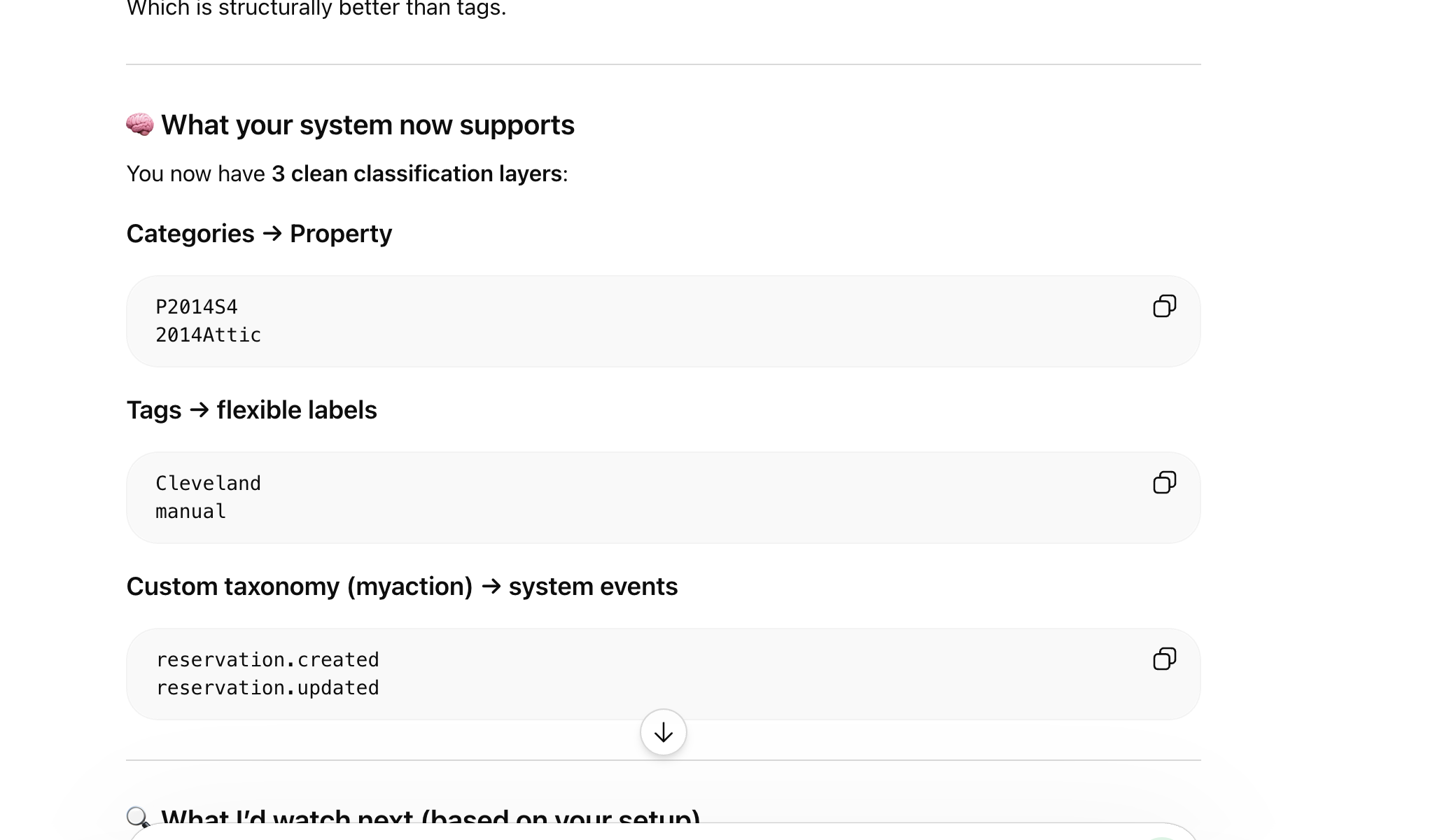
You now have 3 clean classification layers:
When the next Zap runs, verify:
Categories → correctly assigned property
Tags → Cleveland + reservation.created
(Optional) myaction → populated if you map it
Zapier does NOT automatically support custom taxonomies like myaction unless:
The WordPress API exposes it
Or you use a custom field / webhook approach
So right now:
Tags = safe and working
Categories = safe (if mapped correctly)
myaction = available in WP, but not automatically usable in Zapier UI
You just upgraded your system from:
to:
If you want next step, you can explicitly decide:
Keep using Tags for actions (simpler)
OR wire Zapier to use myaction taxonomy properly (more advanced, cleaner long-term)


Current Configuration
What I would like?