Author: Jay

  • 🧠 Internal Update: AdSense Campaign Setup – 2025-09-22

    🧠 Internal Update: AdSense Campaign Setup – 2025-09-22


    🧠 Internal Update: AdSense Campaign Setup – 2025-09-22

    Meeting Summary
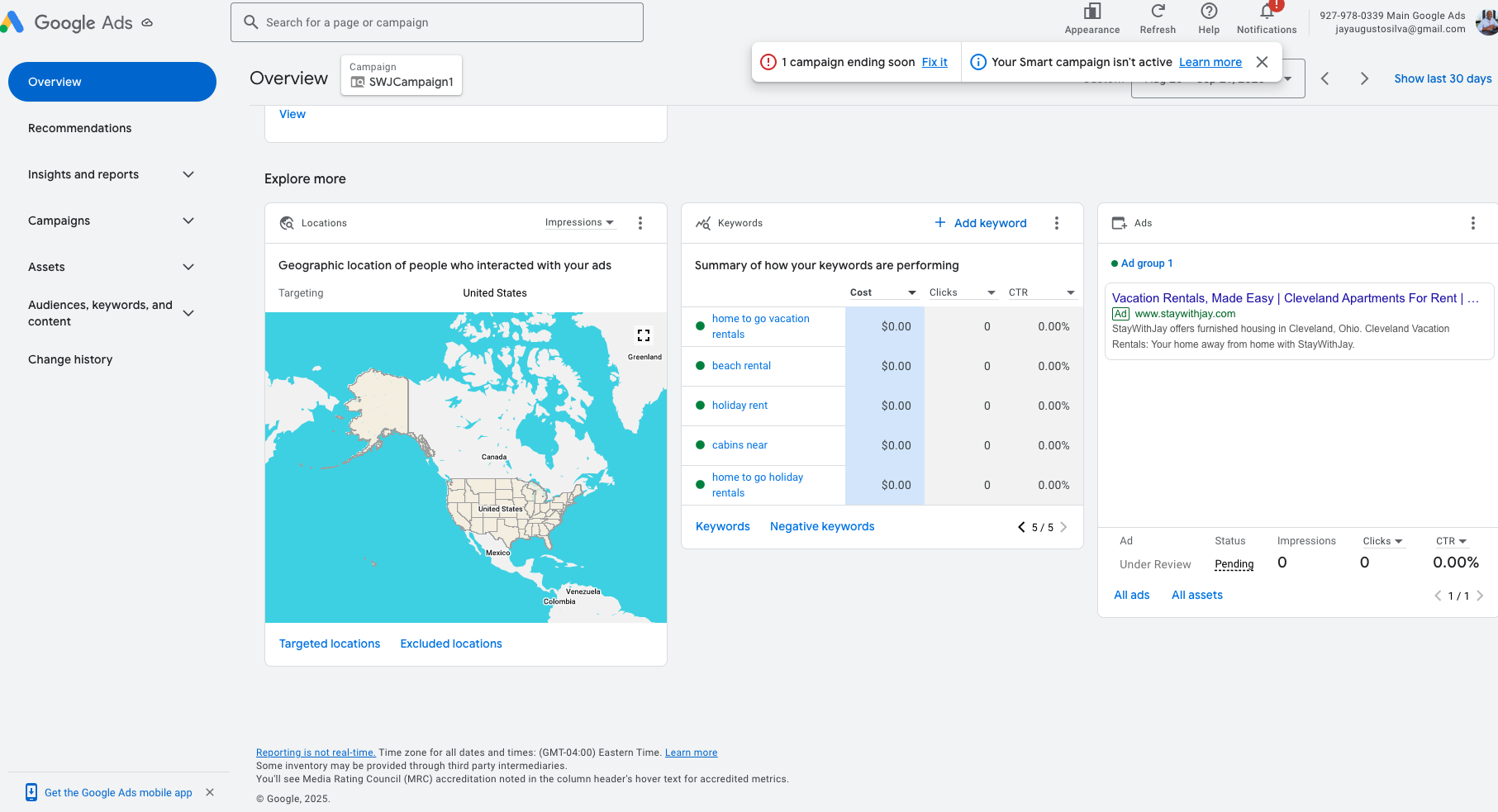
    We had our kickoff meeting with the Google AdSense representative to initiate our digital ad strategy aimed at driving direct bookings through our website. This is part of our broader goal to improve profitability and reduce reliance on third-party platforms.


    ✅ What Was Accomplished:

    • AdSense Account Configuration:
      Initial account was verified and configured. The rep confirmed we can create sub-accounts to manage campaigns for each brand or website individually.
    • Campaign Launch:
      Our first Smart Campaign was launched with a $70/week budget.

      • Google projects that if tags and structure are correctly implemented, this should drive ~58 visitors/week.
      • Target return goal: cover ad spend + generate profit (~$10–$15 retained per night).
    • Target Audience Alignment:
      We confirmed that travel nurses, extended stay guests, and direct-booking travelers will be our core personas.
      Keywords NEED adjusted to reflect this intent.
    • Next Steps from Google Rep:
      • They will send follow-up documentation on proper tag placement (critical for tracking and conversion).
      • The rep mentioned that tagging accuracy on the site will directly impact optimization and visibility.

    📌 Notes for Web Dev Team:

    • You will need to ensure all necessary conversion tracking tags (Global Site Tag / Google Tag Manager) are:
      • Installed correctly
      • Verified for each landing page and booking funnel
    • Expect an email from Google Ads with specific instructions—please review and implement ASAP.
    • Eventually, we will expand campaigns across multiple domains, so the account structure should accommodate that.
    🚧 Outstanding Questions:

    • There was no clear explanation on how to manage or integrate YouTube-based promotions from this account. This will be addressed in a future meeting.

    🗓 Theme of the Week:
    “Don’t Blame the Guests” → Focus is on improving our outreach, infrastructure, and targeting to ensure the right traffic is finding us and converting.


     

  • 💫 Back Again? We’ve Got You. 💫

    💫 Back Again? We’ve Got You. 💫

    💫 Back Again? We’ve Got You. 💫

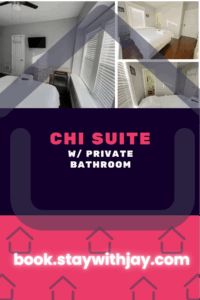
    Our Chi Suite is calling your name. If you’ve stayed with us before, you already know the comfort, the convenience, and the vibes.


    This time, we’re making it even better:
    💸 Use code FirstTime10 for 10% OFF your next booking!

    Because whether it’s your first stay or your fifth, we love having you back.

  • 📝 How to Create a Dynamic Check-In Button (Query String Passthrough)

    📝 How to Create a Dynamic Check-In Button (Query String Passthrough)


    📝 How to Create a Dynamic Check-In Button (Query String Passthrough)

    This guide shows how to build the Virtual Check-In button that takes a guest’s query string from the checkin page and passes it on to the checkinguest page.


    Step 1: Create the Button

    • Insert an Otter Button.
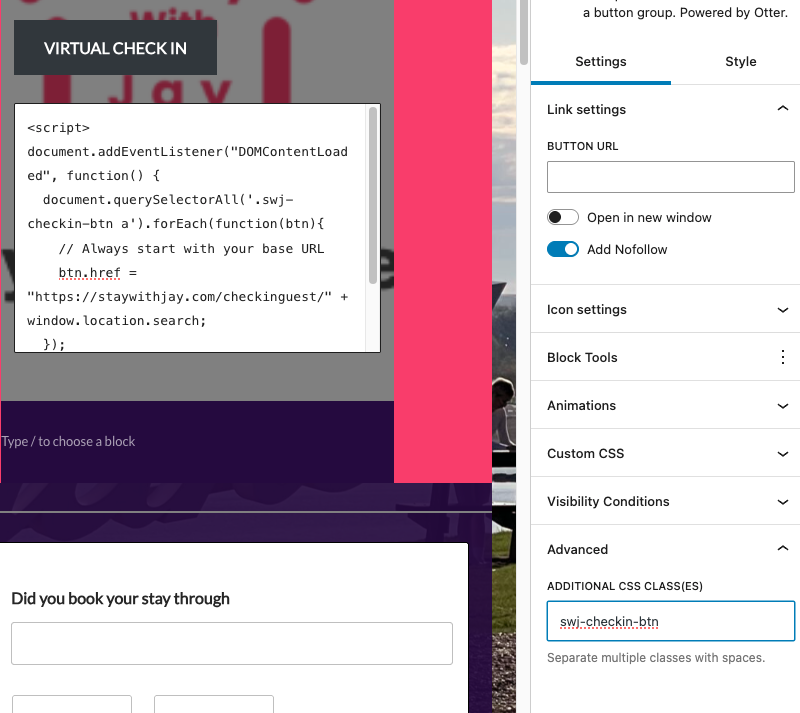
    • In Link Settings, set the Button URL to:
      https://clevelandbyjay.com/checkinguest/
      
    • Go to Advanced → Additional CSS Class(es).
    • Add:
      swj-checkin-btn
      

    (screenshot of button settings here — your Virtual Check In button)
    The 2 images below are critical into making it happen (the #signwithinthebutttonURLiskey)


    Step 2: Add the Script

    • Directly under the button, add a Custom HTML block.
    • Paste the following code:
      <script>
      document.addEventListener("DOMContentLoaded", function() {
        document.querySelectorAll('.swj-checkin-btn a').forEach(function(btn){
          btn.href = "https://clevelandbyjay.com/checkinguest/" + window.location.search;
        });
      });
      </script>
      

    (screenshot of Custom HTML block with script)


    Step 3: Save as a Pattern

    • Select both the Button and the Custom HTML block.
    • Click the 3-dot menu → Create Pattern / Reusable Block.
    • Name it:
      Virtual Check-In Button
      
    • Now, you can drop this prebuilt button+script anywhere on the site.

    (screenshot of save as pattern)


    Step 4: Confirm

    • Visit your checkin page with a query string.
      Example:

      https://clevelandbyjay.com/checkin/?wpf4043_19=123456&wpf4043_21=Booking.com
      
    • Click the button → it should redirect to:
      https://clevelandbyjay.com/checkinguest/?wpf4043_19=123456&wpf4043_21=Booking.com
      

    (screenshots of before/after with working URL)


    ✅ Result: Guests are always redirected to checkinguest/ with their unique codes preserved.


    1. Saving as a Pattern

    Yes ✅ — if you save the Button block + its CSS class (swj-checkin-btn) + the Custom HTML block with script as a Pattern (Reusable Block), both will be preserved.

    • The CSS class stays attached to the button.
    • The script inside the HTML block stays with it.
    • When you drop that pattern on a new page, it will work the same way.

    2. Validity of Custom HTML

    Yes ✅ — the <script> inside the Custom HTML block is valid on any page where it’s placed.

    • It doesn’t matter what the page slug is.
    • As long as the button has the swj-checkin-btn class, the script will find it and append the query string.
    • If you drop multiple buttons with that class on the same page, the script updates all of them.